
Online Classes
Getting Started with Android
Using Zoom
Overview
This article gives a summary of the features available on Android. Using the Zoom Cloud Meetings app on Android, you can join meetings, chat with contacts, and view a directory of contacts.
This article covers:
Sign in and Join
Meet & Chat
Phone
Contacts
Settings
Prerequisites
Zoom Cloud Meetings app (available on Google Play)
Sign in and Join
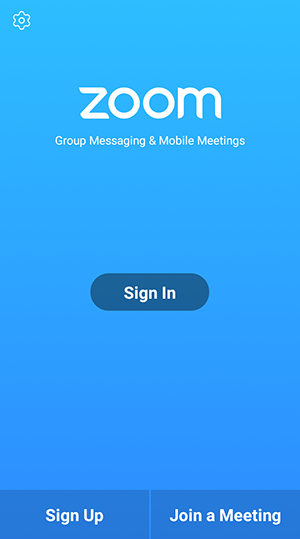
Open the Zoom app and sign in to your account to access all features.
You can also join a meeting without signing in. Tap the gear icon to access basic meeting settings if you join without signing in.
Meet & Chat
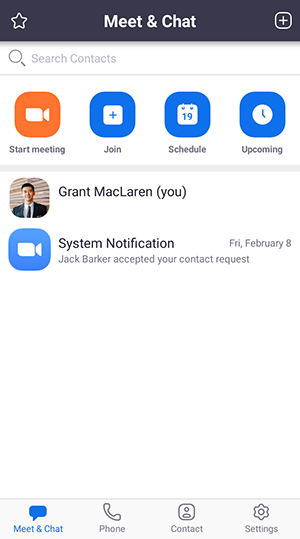
After signing in, tap Meet & Chat for these meeting features:
Start meeting: Start an instant meeting using your PMI or a new meeting ID. Learn about in-meeting controls for hosts.
Join: Join a meeting using the meeting ID. Learn about in-meeting controls for attendees.
Schedule: Schedule a one-time or recurring meeting.
Upcoming Meetings: View, edit, start, or delete your scheduled Zoom meetings.
Tap your name to use your personal chat space.
You also have access to these chat features:
Plus icon : Start a one-on-one chat with a contact.
Star icon : View and start a chat with your starred contacts and channels.
Phone
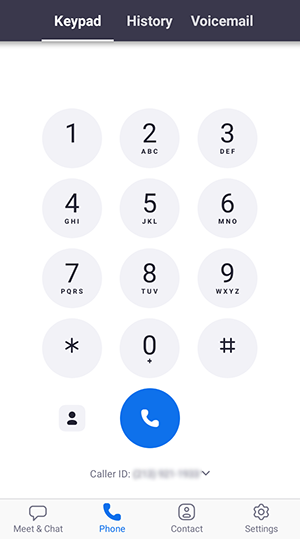
Tap Phone to use Zoom Phone features.
Note: Zoom Phone license required.
Keypad tab: Call a number or contact using your direct phone number or company number.
History tab: View your call log showing answered, missed, and recorded calls.
Voicemail tab: Play and delete voicemail messages.
Contacts
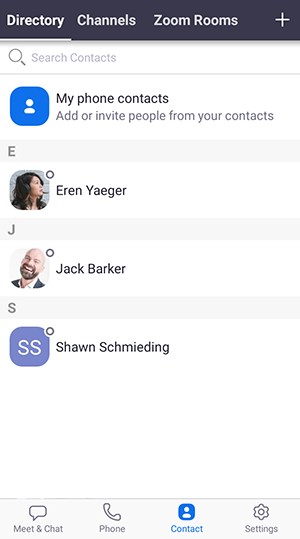
Tap Contacts to list all your contacts and add new ones.
Directory tab: Tap the contact’s to start a one-on-one chat with them.
Channels tab: View a list of starred, public, and private channels.
Zoom Rooms tab: View a list of Zoom Rooms. Tap a Zoom Room to start a meeting with it.
Plus icon : Add a custom contact or create a new channel for group messaging.
Settings
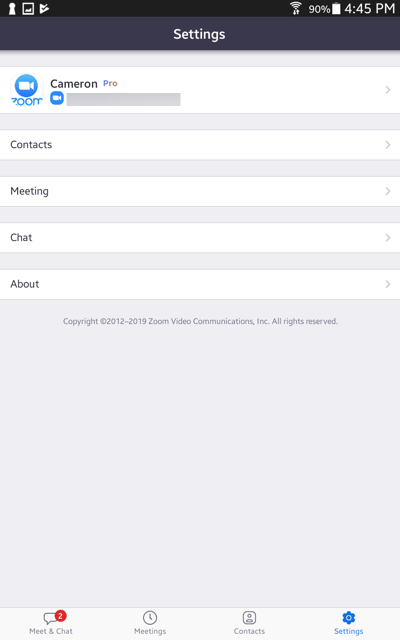
Tap Settings to view meeting and chat settings.
Tap your name to change your profile picture, name, and password.
Contacts: Find phone contacts that are using Zoom, and approve contact requests.
Meeting: Change settings for enabling/disabling your microphone, speaker, or video when you join a meeting.
Notifications: Change when Zoom notifies you of new messages.
Phone (only visible if you have Zoom Phone): View your direct phone number and company number.
Chat: Enable or disable link preview in chat messages.
About Zoom: View the app version and send feedback.